
October 15th, 2006 › WordPress mime-config

What it does

This plugin allows you to configure extra mime-types for support by the inline-uploader.

How it works

A new options page is added as Options … Mime-types which allows you to add/delete the extra mime-types.
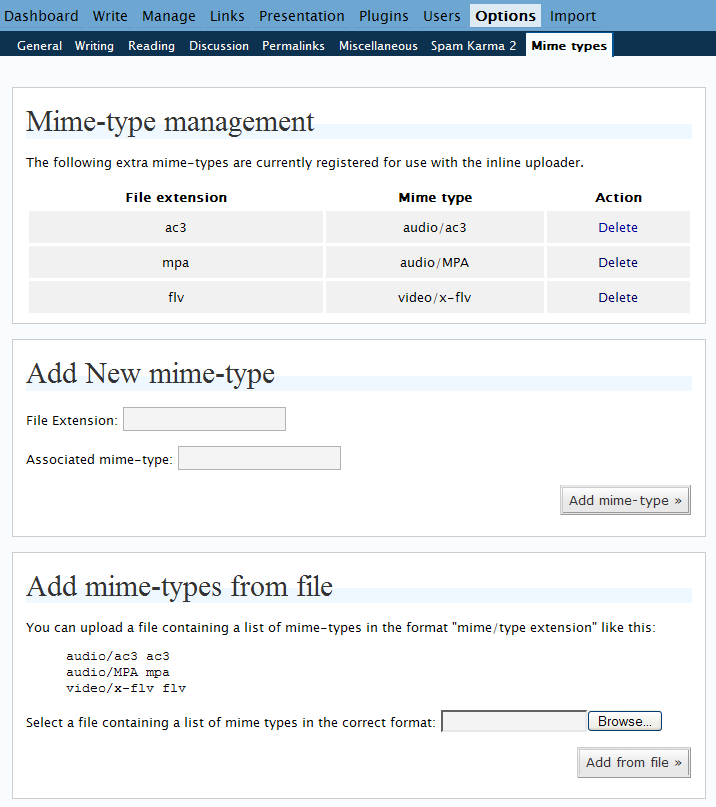
screenshot of the plugins options page

By default the following extra mime-types are registered: audio/ac3, audio/MPA and video/x-flv.

With version 0.90 of the plugin you are now able to upload a file containing a long list of mime types as an easy way to register multiple mime-types. The file format is “mime/type extension” for example like this:

    audio/ac3 ac3
    audio/MPA mpa
    video/x-flv flv

Requirements

This plugin requires WordPress 2.0 or later to function as it relies on the existence of the inline-uploader.
With WordPress 2.0.4 or later the plugin will also use the builtin nonce protection for all actions.

Download

The latest version of the plugin may be downloaded here: pjw-mime-config.0.90.zip

« This entry is part of a series read the rest: 1, 2, 3 »
Read 33 Comments

33 Comments »

This looks promising. I’ll give it a shot and blog it soon.

Comment by Matthew Poer — 23/4/2006 @ 4:43 am §


A challenge, eh? Well, give me a few days to think and I’ll see what I can come up with.

Comment by Matthew Poer — 25/4/2006 @ 11:57 pm §


Not necessarilly a challenge. More of an offer to improve the plugin ;-)

Comment by westi — 26/4/2006 @ 8:08 am §


Works great! Thanks!

Comment by Tim McCormack — 8/5/2006 @ 4:17 am §


Nice, just what I needed. One problem though: there seems to be a problem with determining the file location. I have the “Organize my uploads into month- and year-based folders” option toggled but when I click “send to editor” it does not seem to be respected for files with a mime type I registered using your plugin (the file is in the right location but the link is not correct). If I correct the link manually it works. I don’t have this problem with photos. This may well be wordpress bug.

Comment by Jilles — 21/5/2006 @ 11:57 am §


Jilles: I can’t reproduce your problem here on my test setup. It maybe a WordPress bug related to your particular setup. What version of PHP are you using and on what operating system?

Comment by westi — 24/5/2006 @ 11:02 am §


I’m not sure about the OS (linux no doubt but don’t know which flavour). I’m currently using php 4. I know this because my provider has just announced that they will be switching to version 5 in a few days (2nd June) at the same time mysql will be upgraded from 3 to 5. I’ll keep an eye on the upgrade and check if the problem goes away. I have the Akismet and sidebarwidget plugin running and for the rest it is just a standard wordpress setup (though it did get upgraded several times 1.5->2->2.01->2.02). So that might be a reason for the bug.

BTW. I was registering a mimetype for kmz files application/vnd.google-earth.kmz (googleearth specific).

Comment by jilles van gurp — 24/5/2006 @ 11:51 am §


I’m hoping WordPress will suffice for a small intranet I’m setting up. We need the ability to upload files (Powerpoint, Word, Excel, PDFs) so they’ll be available for others to comment on and download. I came across your page in my search. Will your plug-in allow for this? Forgive the naive question, but I’m new to WordPress and the vast array of plug-ins available.

Comment by Scott Bush — 24/8/2006 @ 9:39 pm §


Scott: WordPress has the builtin ability to allow you to upload files. There is however a list of file types that it will let you upload. My plugin allows you to extend the list of filetypes if the default list does not contain the filetype you wish to upload. Looking through your list and comparing it to the list that WordPress supports I think you will be OK without my plugin for your current upload needs.

Comment by westi — 25/8/2006 @ 7:16 am §


I was able to reproduce the full path bug as follows (this is with 0.90):

1. upload a file with a custom mime type
2. Click Send to Editor (non-WYSIWYG mode) — works
3. Click Using Title to switch it to Using Filename
4. Click Send to Editor — does not insert the full path
5. Click Using Filename to switch back to Using Title
6. Click Send to Editor — still does not insert the full path

After saving the post, it works again, until an option is changed.

Comment by Mike Miller — 1/11/2006 @ 12:16 pm §


Mike: Thanks for the info. Does this only happen with the custom mime types or does it happen for other mime-types? I suspect this is a WordPress bug as the plugin doesn’t do anything apart from extending the list of supported mime-types.

Comment by westi — 1/11/2006 @ 1:25 pm §


I think you may be right. It works for .bmp and .jpg files, but I tried uploading a .txt file, and that also failed.

This is with 2.0.5, btw.

Comment by Mike Miller — 1/11/2006 @ 3:07 pm §


Mike: Ok then it’s probably best for you to raise a ticket on the WordPress trac site

Comment by westi — 1/11/2006 @ 3:18 pm §


plugin looks really good - will it work with wordpress multiuser version?

Comment by praca — 11/11/2006 @ 11:11 am §


Just sent you some Paypal love.

Have a beer for me!

-kevin

Comment by kevin — 14/12/2006 @ 9:36 pm §


Mój blog - Wordpress - wtyczki i skórki…

Wordpress jest świetnym systemem blogowym, jest niesamowicie elastyczny, szybki, tworzony jest przez społeczność skupioną wokół projektu wordpress.org, dzięki czemu jest darmowy. Posiada szereg właściwości, które stawiają go, jeżeli nie n…

Trackback by Marek Włostowski — 16/1/2007 @ 8:12 pm §


I don’t think this works with wp 2.1

Comment by Brent — 30/1/2007 @ 2:49 am §


I don’t think this works with wp 2.1

As far as I know there are no issues with this plugin and WordPress 2.1 - I have tested all the functionality in the latest release (v0.9) and it all works fine.

Comment by westi — 30/1/2007 @ 8:48 am §


Sorry, maybe I’m dumb but apart from image uploading when creating a new post, where else is there inline uploading of files in Wordpress? Does this plugin in fact add a menu option to do so, or alter the way the image uploading function works !? Thanks in advance for clarifying…

Comment by Tim — 4/2/2007 @ 2:30 am §


Tim: WordPress v2.0 has image/file uploading on the post screen and v2.1 adds an upload section as well for managing your uploads I believe.

This plugin allows you to extend the list of allowed file types that you can upload. It adds an Options Page to allow you to do this as shown above.

Comment by westi — 4/2/2007 @ 12:04 pm §


thanks for the plugin looks really good. I will use it on my worpress blog. Greetings

Comment by Pozycjonowanie — 11/2/2007 @ 1:37 pm §


Thx for the plugin! It looks really good. Im using it right now on my wordpressblog!

Thanks again!

Comment by Alexander — 18/2/2007 @ 8:42 pm §


Hi Westi,

I have a big problem.

I dint read description carefully and I wanted add mime-types from file choosing *.xls (excel) file. I thought that your plugin adds extension and mime type form the file type not from the list in the file.

Now I have on File extension list many rows with entries like:
Excel�@��������j� @������s�j� @����EV:�j� ���
The problem is that I can not delete the rows. There is no error - I choose “delete” then I confirm and the line remains on the list.

Can I remove the rubbish lines manually or how to restore default settings.
regards,

malin

Comment by malin — 19/4/2007 @ 4:25 pm §


malin: Oh dear! At present the plugin doesn’t have a handy way to clear out the list.

However, if you copy the following code into a file and add it to your plugins directory you can use it to clear out the extra mime-types easily.

If you activate this plugin and then deactivate it the extra mimetypes will be cleared out and then you can use the normal plugin ui to add back in the ones you want.

<?php
/*
   Plugin Name: PJW Mime Clearer
   Plugin URI: http://blog.ftwr.co.uk/
   Description: Cleans out the extra mime-types.
   Author: Peter Westwood
   Version: 0.000001
   Author URI: http://blog.ftwr.co.uk/
 */

/* Do the work */
add_action(’plugins_loaded’, create_function(”,’update_option(\’pjw_mime_types\’,\’\');’));
?>

Hope this helps!

Comment by westi — 19/4/2007 @ 9:22 pm §


Hi Peter,

thank you for the reply.

unfortunately the PJW Mime Clearer didn’t help ;-(

After activating all WP pages were blank.

I had to remove file from plugin directory to make WP work again.
The mime types are still on the list. (see attachment)

Where these entries are stored, file or table in db ?
How to remove them manually?

Regards,
malin

Comment by malin — 8/6/2007 @ 4:29 pm §


They are stored in the db.

I think you may have had problems with the example plugin due to the way
in which WordPress converts normal quotes into smart quotes so I have
sent it to you in an email.

If this still doesn’t work the entry will be in the options table of the
WordPress database.

Comment by westi — 9/6/2007 @ 11:28 am §


Looks like the issue resolved itself. Everything looks great, thanks for the excellent plugin. :)

Comment by Martino — 5/7/2007 @ 1:32 pm §


does anyone know, if pjw-mime-config v0.90 runs with wordpress 2.3?

Comment by be. — 22/10/2007 @ 10:39 am §


be: Yes it works fine with WordPress 2.3

Comment by westi — 22/10/2007 @ 11:05 am §


Nice work man,
it’s actually works good.
i took the plugin and translate it to hebrew, took me 10 min!
here is the link to the translate version:
http://www.pintophotography.com/wp/wp-content/uploads/2008/02/pjw-mime-config-heb.rar

Comment by Pinto — 2/2/2008 @ 4:41 am §


Here is a working link to the post on the plugin.
http://www.pintophotography.com/wp/?p=92

Comment by Pinto — 26/2/2008 @ 6:30 pm §


[...] כאן להורדת הקובץ המתורגם, גירסת 0.9. לחצו כאן לאתר [...]

Pingback by תירגום תוסף ראשון שלי | עולם הצילום ועוד... — 9/3/2008 @ 7:38 pm §


[...] fix that issue, I snagged Peter Westwood’s mime-config plugin for Wordpress, making the change suggested in this thread to keep the plugin from appearing in [...]

Pingback by » Getting around uploading issues Blogs @ William and Mary — 9/5/2008 @ 1:58 pm §


RSS feed for comments on this post. TrackBack URI

Leave a comment

XHTML: You can use these tags: <a href="" title=""> <abbr title=""> <acronym title=""> <b> <blockquote cite=""> <cite> <code> <del datetime=""> <em> <i> <q cite=""> <strike> <strong>

26 queries. 1.541 seconds. Powered by WordPress. This blog is protected by Spam Karma 2: 208537 Spams eaten and counting...